Consultancies are the firms which require the most presentations. Not only PPT slides but also reports, case studies and even whitepapers.
Consultants often are good in their profession ie consultancy but lack PPT design skills. If you are from a consultancy firm and want to design a good presentation then this is your go-to guide.
Client-Focused Communication Insight
Client presentations become effective when they show the client how to decide, not just what the consulting team found. A strong deck brings the commercial implication forward, makes trade-offs explicit, and keeps every slide tied to the decision in the room.
— Alina Aron, Principal, M&A and Fundraising Strategy, A1 Slides
PPT Design for Consultants
Here are some basic instructions and if you follow them, you should be able to design a reasonably good presentation. This comes with our years of experience working with consultancies and for their clients.
Following these instructions can make you a HERO in your partner’s / client’s eye so start at your risk:
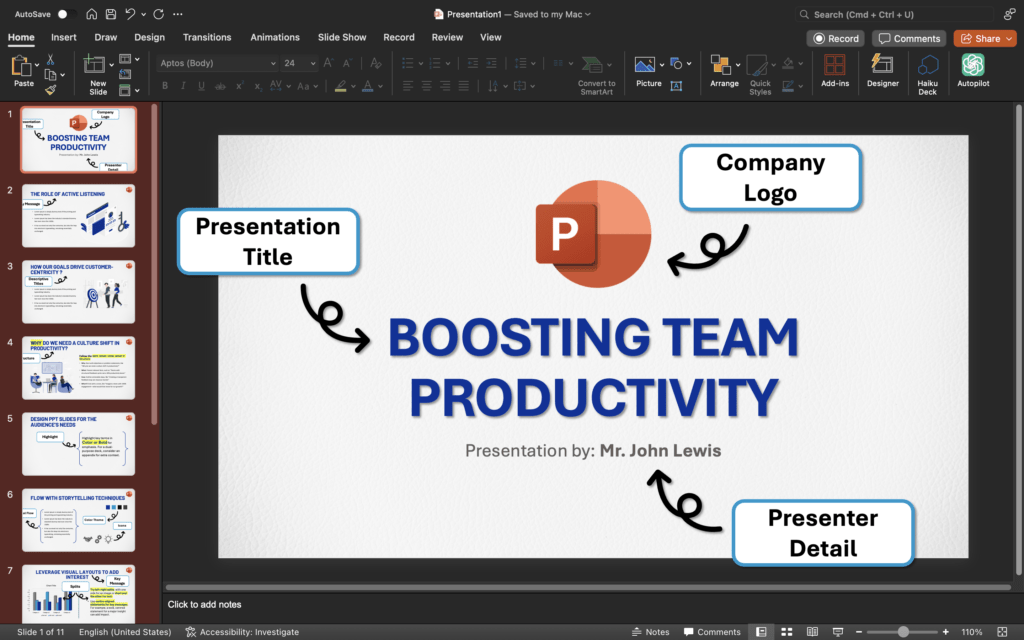
01. Set Clear Expectations at the Start
- Use a “What You’ll See / What You Won’t See” slide to clarify the scope. This aligns the audience and reduces confusion.
For example, if your topic is “Boosting Team Productivity,” specify if you’ll cover specific tools, strategies, or a case study.
- Add a timeline or journey map showing what the audience will learn by the end.
- Reference: Nancy Duarte’s “Resonate” offers ways to engage the audience from the start.
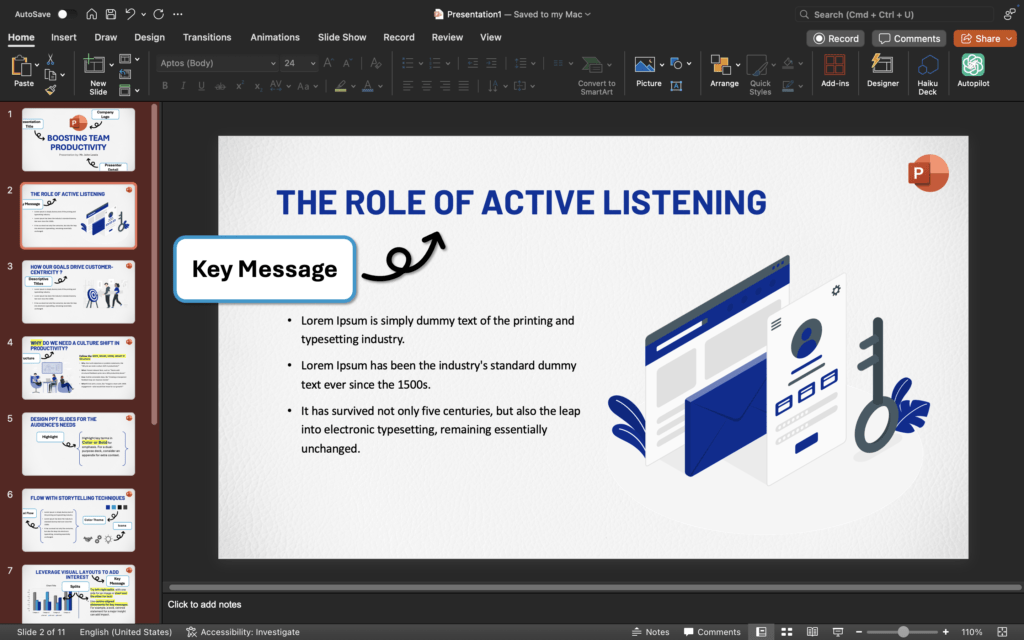
02. One Key Message Per Slide for Maximum Impact
- Focus each slide on one main takeaway to avoid overload.
For example, dedicate a slide to “The Role of Active Listening” with an insight and example.
- Add an image, quote, or stat to reinforce each point.
- Reference: The “Lessig Method” (by Lawrence Lessig) is a style that emphasizes one main point per slide.
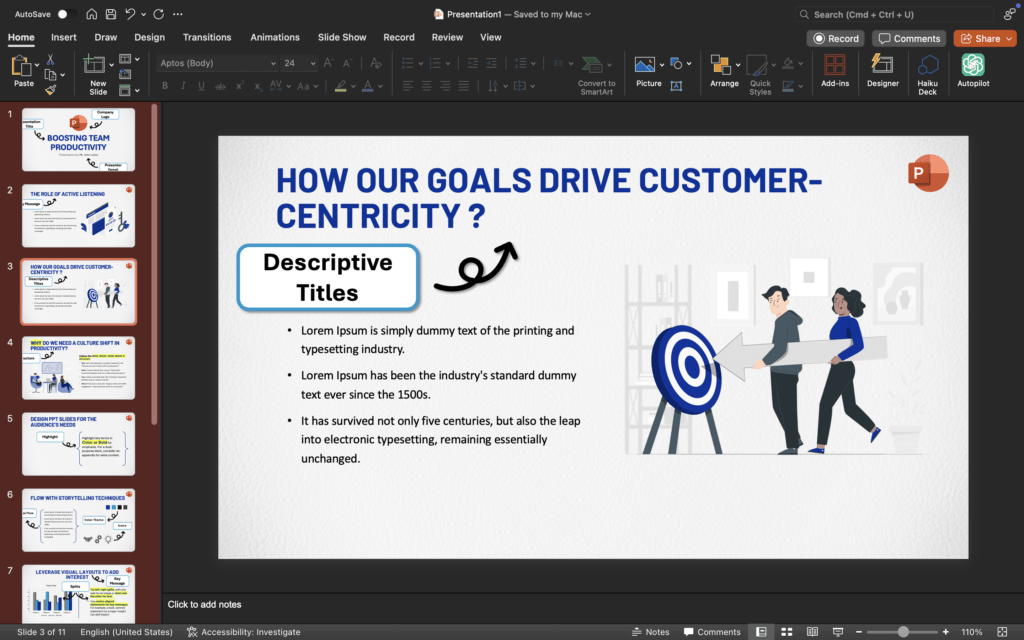
03. Use Descriptive Titles That Act as Summaries in the deck
- Make slide titles the main message. For instance, instead of “Company Goals,” try “How Our Goals Drive Customer-Centricity.” See the difference? The moment you change the line, the impression of slides multiple
- Consider using questions or statements as titles, like “Are We Meeting Customer Needs?”
- Reference: “Made to Stick” by Chip and Dan Heath provides strategies for making ideas memorable, including the importance of clear, strong titles.
Are you a Consultancy or Training organization, looking for PPT makeovers or new presentations?
Let's Talk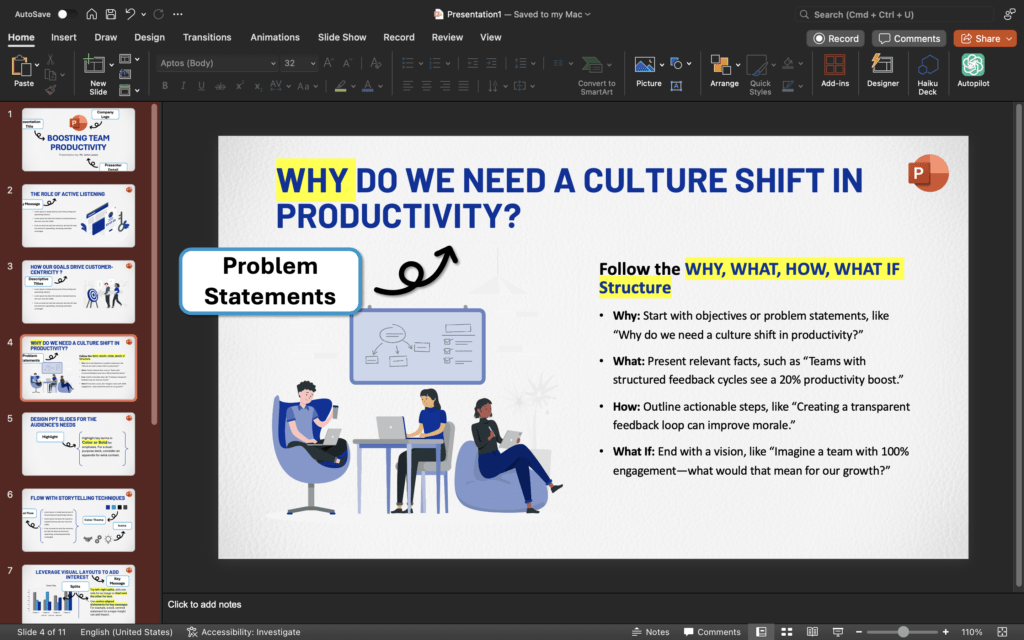
04. Follow the WHY, WHAT, HOW, WHAT IF Structure
- Why: Start with objectives or problem statements, like “Why do we need a culture shift in productivity?”
- What: Present relevant facts, such as “Teams with structured feedback cycles see a 20% productivity boost.”
- How: Outline actionable steps, like “Creating a transparent feedback loop can improve morale.”
- What If: End with a vision, like “Imagine a team with 100% engagement—what would that mean for our growth?”
- Reference: Simon Sinek’s “Start With Why” emphasizes starting with purpose.
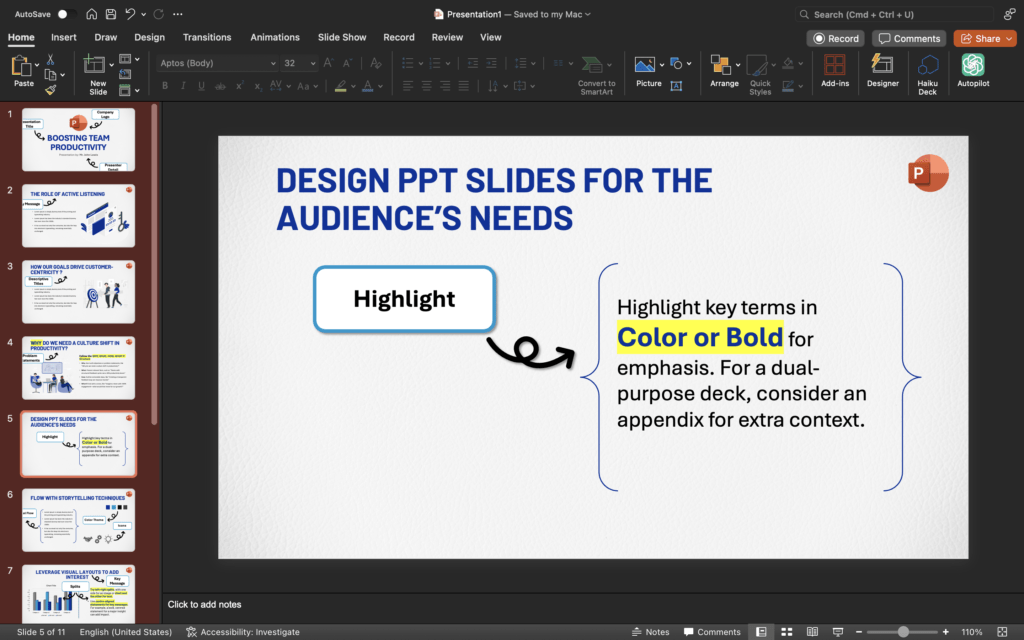
05. Design PPT Slides for the Audience’s Needs (Presentation vs. Reading)
- Use minimal text and visual cues for live presentations. Add detail to slides for reading later.
- Highlight key terms in color or bold for emphasis. For a dual-purpose deck, consider an appendix for extra context.
- Reference: Garr Reynolds’ “Presentation Zen” stresses designing slides for interaction, not heavy text.
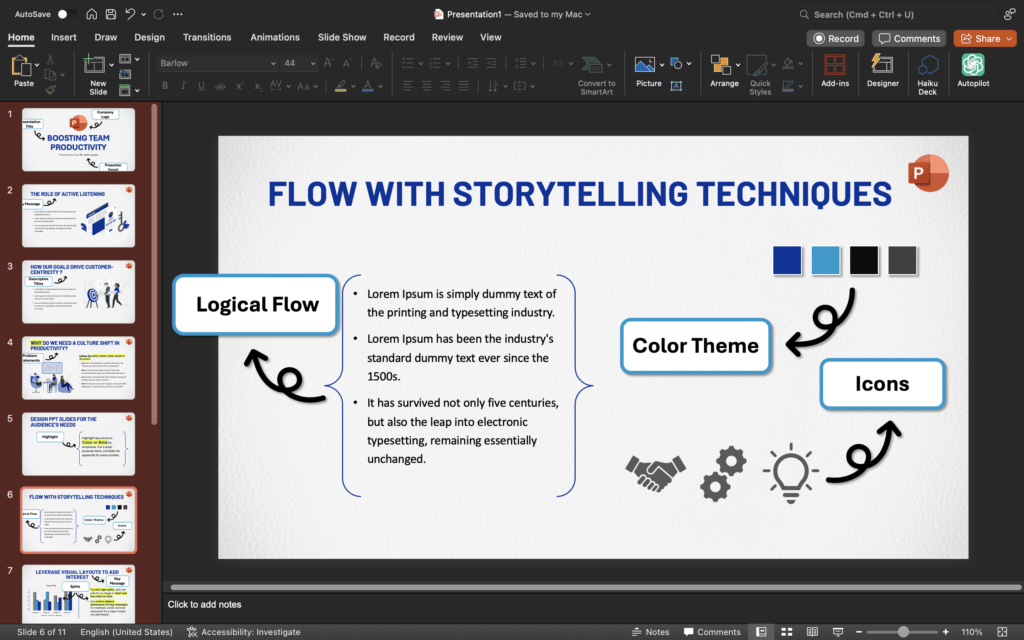
06. Create a Seamless Flow with Storytelling Techniques
- Map out the presentation in bullet points to ensure logical flow. Use a logical structure, grouping key points under headings.
- Use consistent color themes or icons to signal topic shifts, helping transitions feel smooth.
- Reference: “The Pyramid Principle” by Barbara Minto explains how to structure complex ideas clearly.
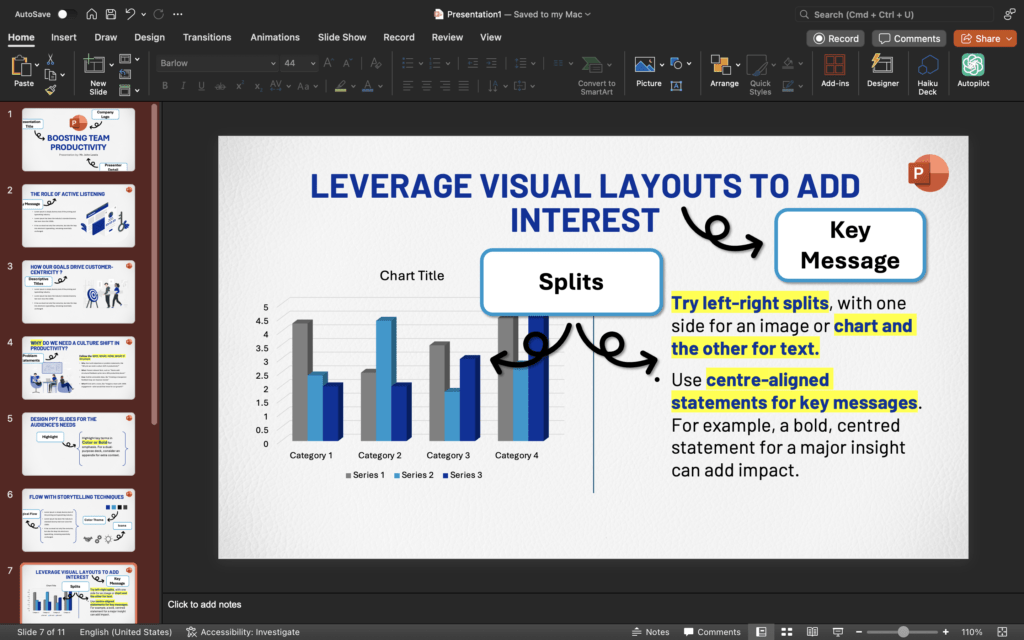
07. Leverage Visual Layouts to Add Interest
- Try left-right splits, with one side for an image or chart and the other for text.
- Use centre-aligned statements for key messages. For example, a bold, centred statement for a major insight can add impact.
- Reference: Nancy Duarte’s “Slide:ology” covers layout techniques that enhance engagement.
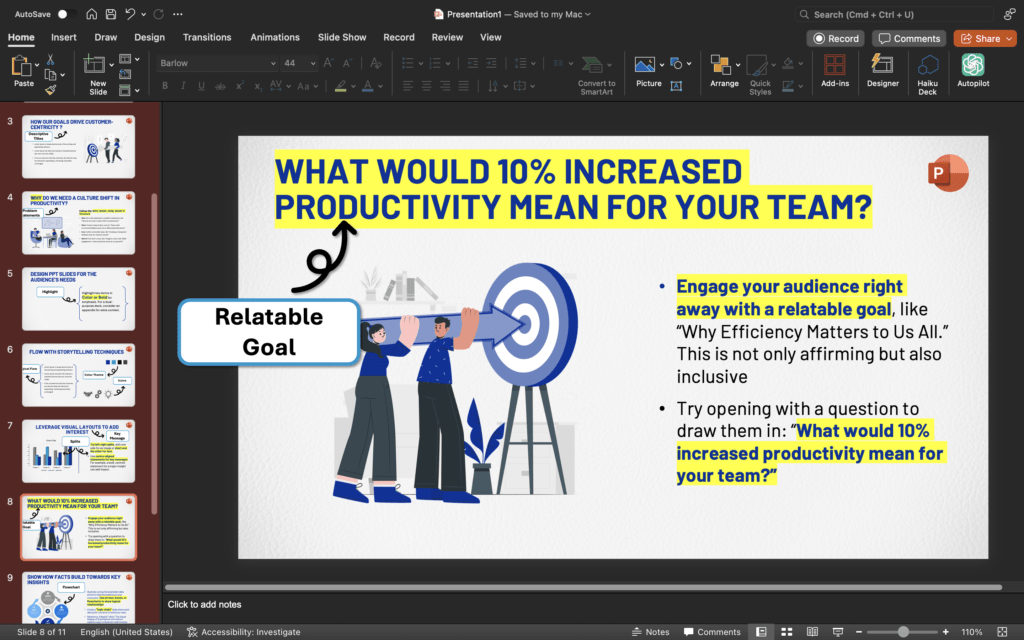
08. Start by Affirming Shared Goals or Values
- Engage your audience right away with a relatable goal, like “Why Efficiency Matters to Us All.” This is not only affirming but also inclusive
- Try opening with a question to draw them in: “What would 10% increased productivity mean for your team?”
- Reference: The “Yes-Set” technique in psychology encourages using agreeable statements to build a receptive mindset.
Are you a Consultancy or Training organization, looking for PPT makeovers or new presentations?
Let's Talk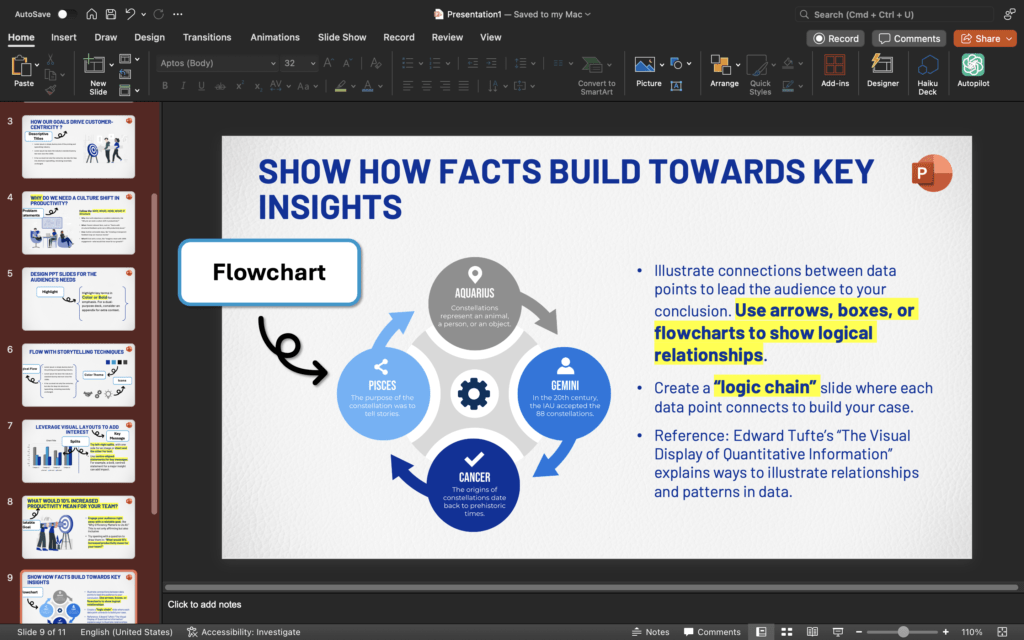
09. Show How Facts Build Towards Key Insights
- Illustrate connections between data points to lead the audience to your conclusion. Use arrows, boxes, or flowcharts to show logical relationships.
- Create a “logic chain” slide where each data point connects to build your case.
- Reference: Edward Tufte’s “The Visual Display of Quantitative Information” explains ways to illustrate relationships and patterns in data.
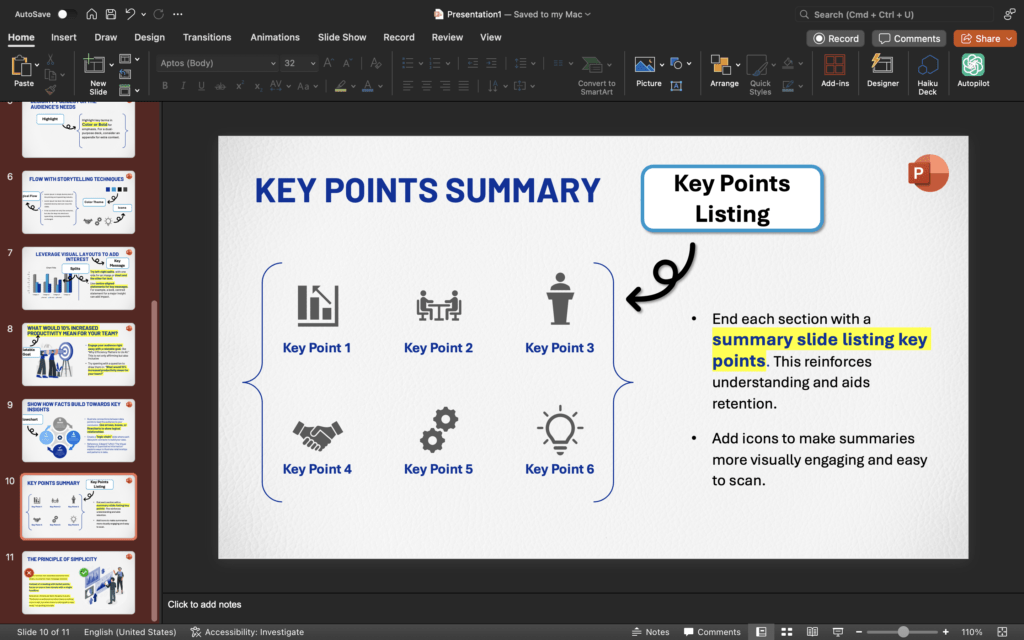
10. Summarize Key Points After Each Section
- End each section with a summary slide listing key points. This reinforces understanding and aids retention.
- Add icons to make summaries more visually engaging and easy to scan.
- Reference: Summaries help in teaching and storytelling; “Teach Like a Champion” by Doug Lemov covers the importance of reinforcing core ideas.
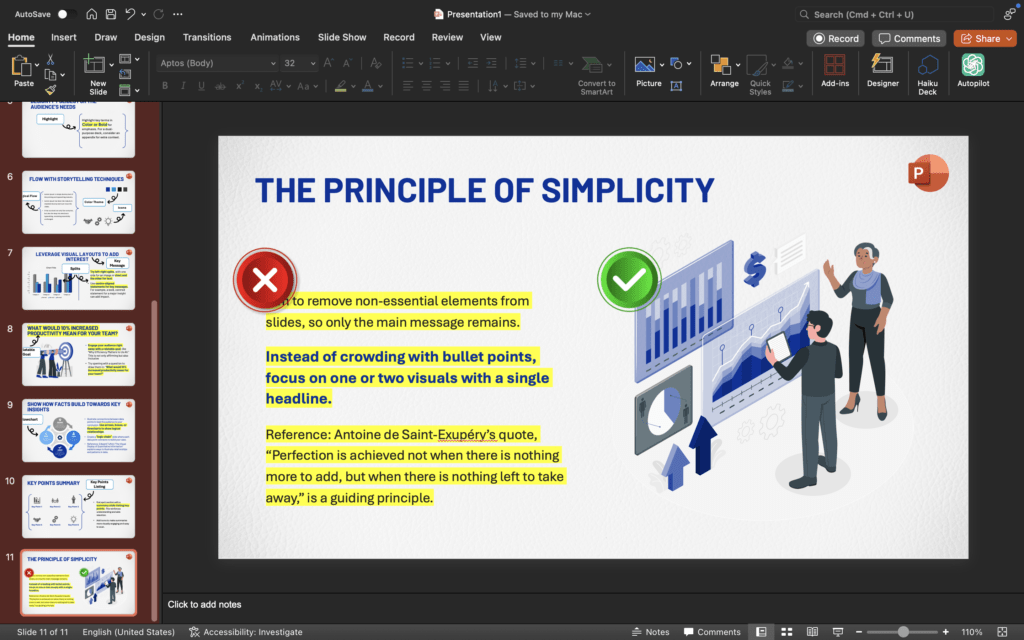
11. Apply the Principle of Simplicity
- Aim to remove non-essential elements from slides, so only the main message remains.
- Instead of crowding with bullet points, focus on one or two visuals with a single headline.
- Reference: Antoine de Saint-Exupéry’s quote, “Perfection is achieved not when there is nothing more to add, but when there is nothing left to take away,” is a guiding principle.
12.Bonus tip
Esigning the presentation in brand guidelines of your client or your firm. This is the most challenging problem that we see in consultancy firms. Even though these consultancy firms have their own templates, a common problem they face is that even by using pre-designed templates, the presentation is not coming out well.
To answer you honestly, no template can do justice when it comes to design an effective presentation in brand guidelines. Templates are designed to stop creativity and maintain consistency, where most presentation gets boring and meaningless.
It’s always better to follow brand guidelines and stay creative by using your own skills and not to follow templates.
By combining these strategies, you can create a well-structured, visually engaging presentation that resonates with your partners & clients and makes your message clear and memorable.
Following are a few frequently asked questions which may help any consultant to know a step deeper. As a consultant, Improve your slide-making skills and design effective presentations with these expert answers. If you are working with a consultancy firm, then learn how to develop your ppt designing skills, and recreate high-quality slides.
Consultancies like McKinsey, EY , PwC, and Deloitte prefer consultants who can pair sharp client thinking with a presentation consultant mindset. Learn more about McKinsey Style presentation here
Struggling with capacity? See how we provide invisible white label presentation support for global strategy firms.
Are you a Consultancy or Training organization, looking for PPT makeovers or new presentations?
Let's TalkMastering PowerPoint Presentations: FAQs for Consultants
You're right! Creating effective presentations isn't usually a formally taught skill. And it is less likely you will be taught PPT designing in a consultancy firm. PPT designing is more of an art developed through experience and feedback while working with clients or projects. There's no universal “good slide” formula ( & most of the time it boils down to your manager, partner, and client preferences)
- Practice Practice Practice: The more slides you create, the better you'll become. Seek opportunities to work on presentations and ask for feedbacks.
- Study top decks: Analyze well-received presentations & learn from them. Pay attention to layout, font choices, color schemes, and how information is visually presented along with icons used, infographics designed etc
- Learn from the best: Collaborate with colleagues skilled in slide design or take a tution from presentation designers. Their experience, guidance and feedback can significantly accelerate your learning.
- Work on feedback: Don't be afraid to ask your manager or partner for specific feedback on what they'd like to see improved. If their feedback is unclear, politely request clarification. In our experience, many managers are not clear themselves and can’t express what is wrong but are not fully convinced
- Outsource: Finally if it makes sense to concentrate on strategy designing rather than PPT designing then consider presentation consultant selection guide
Absolutely! Try this:
- Choose a well-designed deck: Pick a presentation known for its quality. You might have it already from past projects or you can look around
- Dual monitors or printouts: Have the good deck on one screen or printed out for reference.
- Recreate it: Build the same slides from scratch on the other screen. This helps you understand the building blocks, chart types, and language used.
- Stick to one theme: Maintain uniformity in layout, background, fonts, and color palettes throughout the entire presentation.
- Consistency is key: Copy and paste elements that repeat to ensure they are positioned identically.
- Use tables: Tables can be surprisingly versatile. Use them to create progress bars, structure content, or even as invisible placeholders for easier manipulation.
- Visualize whenever possible: Replace large chunks of text with visuals like charts, diagrams, or images to enhance clarity and engagement.
It means your slide isn't effectively conveying its key takeaway. Each slide should have a clear purpose and answer the “So what?” question.
Ask yourself, “What conclusion should the audience draw from this information?” and make sure your slide explicitly answers that.
AI is a good choice for content writing but a terrible one for designing presentations for consultants [ Read Ai vs Professional Designers here ] . The tools yet to be developed which can reach to a level where you rely on them for designing these crucial presentation decks for your client.
Read here for knowing more about ai tools for presentation designing
Knowing your audience is paramount! Tailor your content and presentation style to their level of understanding, interests, and expectations. Understand this: a senior executive might prefer a concise, high-level overview, while a project team may require more detailed data-driven slides.
Before diving into slide creation, clarify the purpose and audience for the presentation.
- Is it a client-facing presentation,
- an internal team update, or a
- discussion-provoking workshop
Each type calls for a different approach in terms of content, tone, and level of detail.
Seek guidance from your manager to ensure your presentation aligns with the specific objectives and audience.
Key terms
- Deck: A set of slides for a presentation
- Theme: A pre-designed combination of colors, fonts, and slide layouts that create a visually consistent look and feel for a presentation
- Visualize: To represent information or data using pictures, charts, graphs, etc. instead of just text
- AI (Artificial Intelligence): The ability of a computer or a robot controlled by a computer to do tasks that are usually done by humans because they require human intelligence and discernment
- Context: The circumstances that form the setting for an event, statement, or idea, and in terms of which it can be fully understood