
Accessible PowerPoint: WCAG Guide
for Inclusive Presentations (2025)

The Definitive Guide to Accessible PowerPoint Presentations: Mastering WCAG for True Inclusion
Concise Definition: Accessibility in presentations means crafting your PowerPoint slides and content so they’re perceivable, operable, understandable, and robust (POUR) for everyone, including people with disabilities. This primarily involves adhering to the Web Content Accessibility Guidelines (WCAG) to ensure truly inclusive communication.
1. Introduction: Why WCAG Accessibility in Presentations is Non-Negotiable in 2025
Imagine pouring your heart and expertise into a presentation, only for a portion of your audience to miss the message entirely. In today’s digitally-driven world, ensuring everyone can access, understand, and engage with your information isn’t just a commendable goal—it’s a fundamental necessity for effective communication. When we discuss PowerPoint accessibility, especially in line with the Web Content Accessibility Guidelines (WCAG), we’re championing a conscious, empathetic approach to design and delivery that breaks down barriers for individuals with disabilities.
Presentations have evolved into sophisticated communication instruments. But true sophistication lies in inclusivity. This comprehensive guide, drawing on expertise from seasoned presentation designers like the team at A1 Slides, explores what WCAG accessibility truly means for your presentations. We’ll delve into why it’s crucial for WCAG compliance in presentations, offer practical steps for implementation in PowerPoint, and help you navigate common challenges. Because when your presentations are genuinely accessible, your message has the power to reach, resonate, and make a lasting impact on every single member of your audience.
2. Understanding WCAG Core Concepts: The POUR Principles for Accessible Presentations
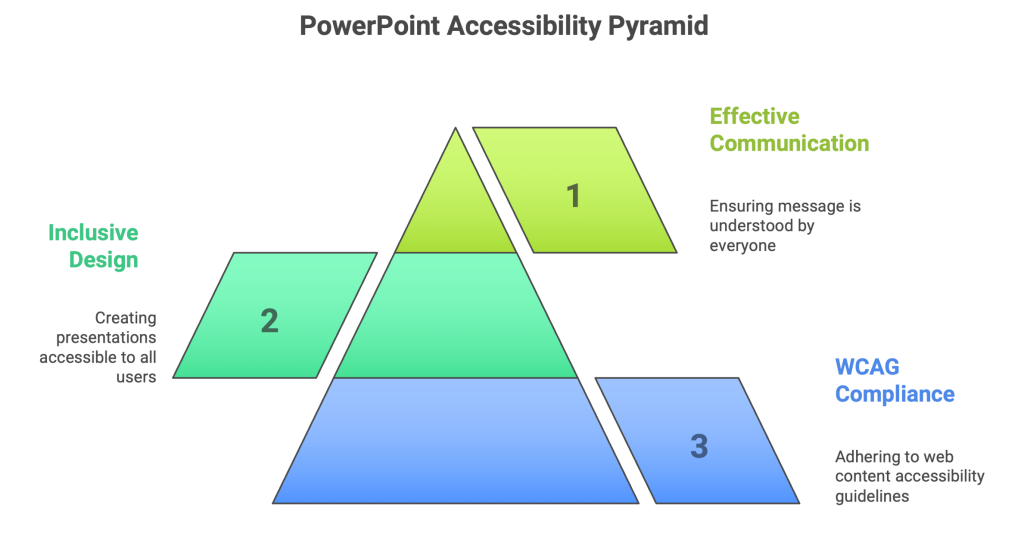
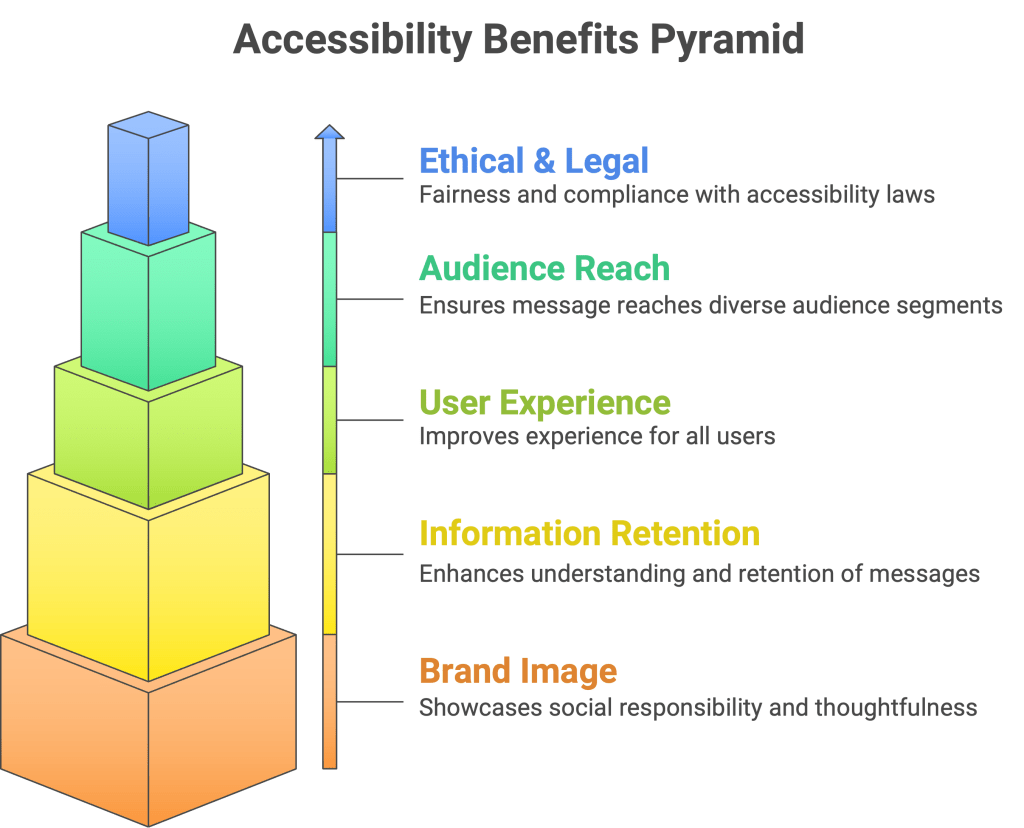
The Web Content Accessibility Guidelines (WCAG), developed by the World Wide Web Consortium (W3C), serve as your essential roadmap to creating more accessible digital content, including impactful PowerPoint presentations. Think of WCAG as the global gold standard. At its heart are four guiding principles, easily remembered by the acronym POUR:
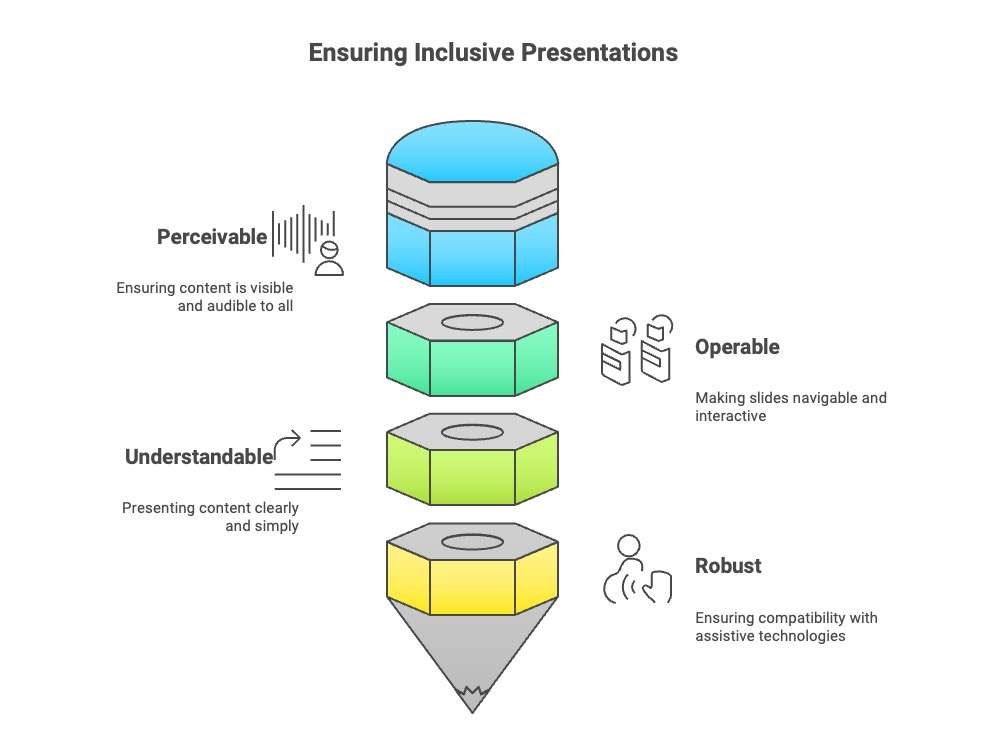
- Perceivable: Can everyone fully see and hear your content? This involves providing crucial alternatives for information that might be inaccessible to certain senses. Key examples include alt text for images and captions for audio content. (Sources: Stark, W3C)
- Operable: Can everyone effectively interact with your presentation? This means ensuring smooth keyboard navigation for those who cannot use a mouse and providing sufficient time for all users to read and engage with the content. (Sources: Stark, W3C)
- Understandable: Is your information, and the way your presentation functions, clear, predictable, and easy to grasp? This emphasizes using plain language where appropriate and designing presentations that behave in expected, user-friendly ways.
- Robust: Can your content be reliably interpreted by a diverse range of user agents, including essential assistive technologies like screen readers? As technology evolves, your presentation content must remain accessible and functional.
WCAG guidelines are structured into three conformance levels:
- Level A: The minimum level of WCAG conformance.
- Level AA: The widely recommended level, and often the benchmark cited in legal accessibility requirements such as Section 508 in the US and the European Accessibility Act (EAA). This should generally be your target for accessible PowerPoint presentations. (Source: WCAG.com)
- Level AAA: The highest, most comprehensive level of conformance for enhanced accessibility.
Why is this so critically important? Beyond the undeniable ethical imperative of fostering inclusivity, there are compelling legal and business reasons. Many regions globally have enacted laws mandating digital accessibility, and failing to achieve WCAG compliance can lead to significant legal challenges. (Source: WCAG.com). More profoundly, accessible design often translates into a superior experience for all users. Clear visuals, logical structure, and intuitive navigation benefit every audience member, not just those with documented disabilities. It’s simply good design, amplified by empathy.
Poorly designed, inaccessible presentations don’t just fail to connect; they can actively exclude and alienate segments of your audience, undermining your message and brand.
3. The Ripple Effect: Why Accessibility is Crucial for Effective and Inclusive Presentations
Making your presentations accessible is far more than checking off a compliance item; it’s about unlocking a powerful ripple effect of benefits:
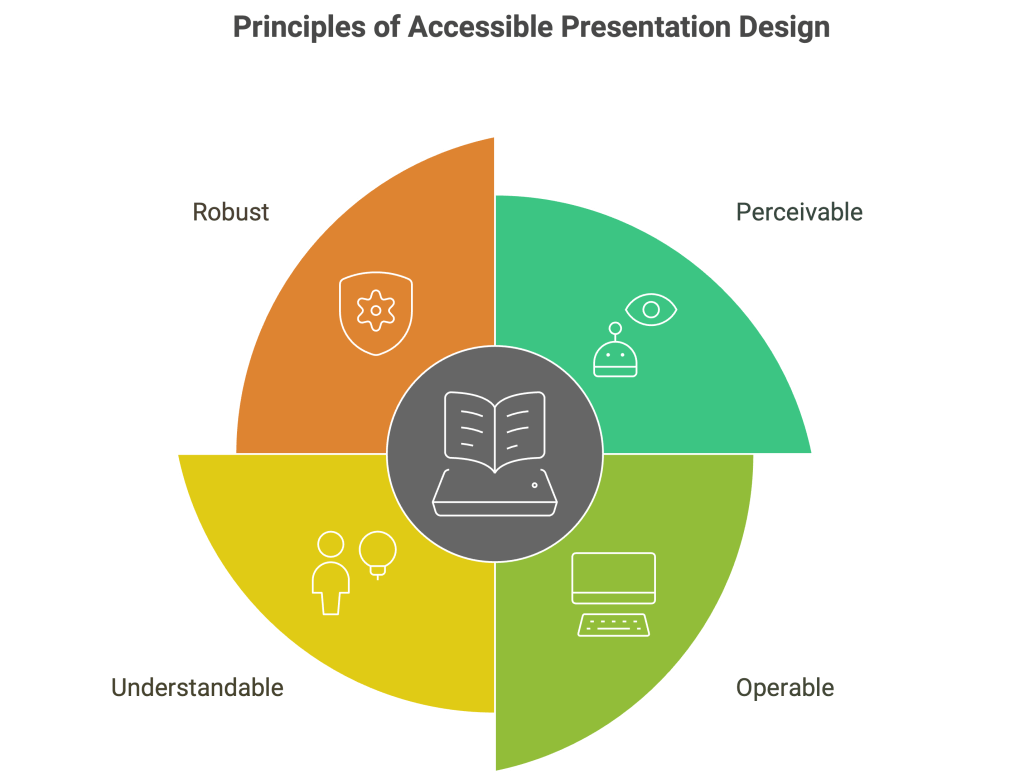
- Ethical Imperative & Equal Opportunity: Fundamentally, it’s about fairness. Everyone deserves an equal opportunity to access, engage with, and understand the valuable information you’re sharing.
- Legal Compliance & Risk Mitigation: As highlighted, laws like Section 508 (U.S.) and various European mandates often require WCAG AA conformance for digital content, including presentations. Adherence minimizes legal and financial risks.
- Expanded Audience Reach: A significant percentage of the global population lives with some form of disability. Accessible presentation design ensures your message genuinely reaches this vital segment of your audience.
- Enhanced User Experience for All: This cannot be overstated. Best practices for accessibility—such as clear fonts, strong color contrast, logical slide structure, and captions—vastly improve the experience for everyone. Consider users in brightly lit rooms, non-native speakers benefiting from plain language, or attendees in noisy environments appreciating captions.
- Improved Information Retention & Comprehension: When presentations are clear, well-structured, and cognitively easy to process (all hallmarks of inclusive presentations), your audience is far more likely to understand, retain, and act upon your key messages.
- Positive Brand Image & Reputation: Demonstrating a tangible commitment to accessibility showcases your organization as socially responsible, thoughtful, and genuinely considerate of all potential audience members, strengthening your brand’s reputation.
- SEO Benefits for Online Presentations: Digital accessibility practices, like providing descriptive alt text for images, can also enhance the search engine optimization (SEO) of presentations shared online, making them more discoverable.
If your presentation isn’t accessible, you’re potentially missing out on valuable insights, engagement, and even critical business opportunities.
4. Practical Guide: Implementing WCAG Best Practices in PowerPoint Accessibility
Let’s get down to the “how-to.” How do you translate these principles into a genuinely accessible PowerPoint? Here’s an enriched, actionable guide:
- Start with an Accessible PowerPoint Template: PowerPoint offers built-in accessible templates. Utilize them! They are pre-designed with good contrast, readable fonts, and logical structures that screen readers can navigate more easily. (Source: Microsoft Support)
- Unique and Descriptive Slide Titles are Key: Every single slide must have a unique, descriptive title, even if you choose to hide it visually for design reasons (it can be positioned off-slide). This is absolutely crucial for screen reader users to navigate your presentation effectively. (Source: Microsoft Support)
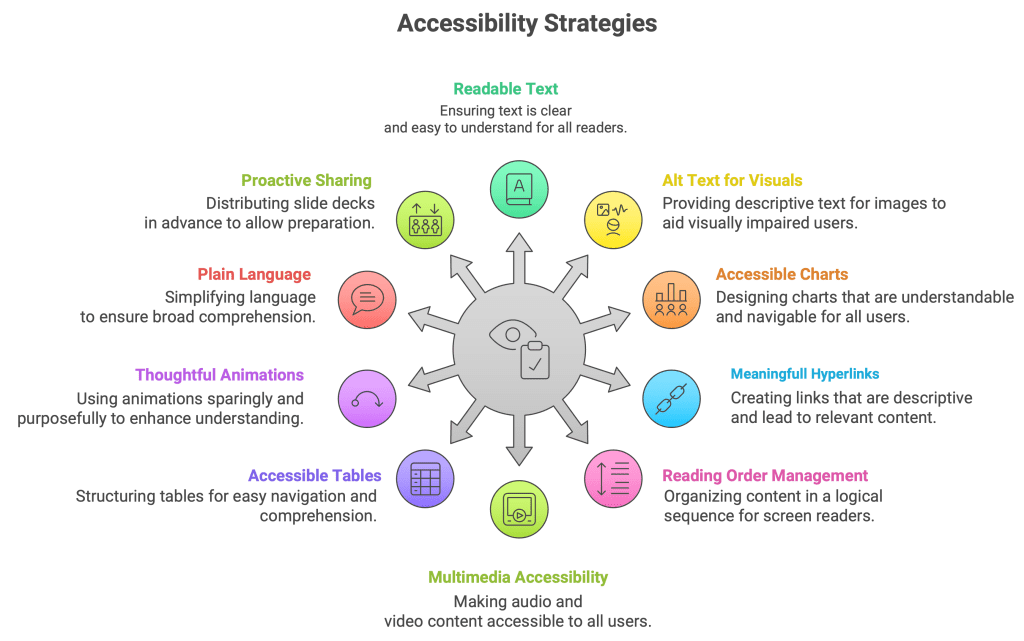
- Ensure Readable Text:
- Fonts: Opt for clear, sans-serif fonts like Arial, Calibri, or Verdana. Aim for at least 24pt for body text and 32pt+ for headings. While some sources suggest an 18pt minimum, larger is generally better for presentation readability. (Source: Berkeley)
- Color Contrast: This is paramount. Ensure high contrast between text and its background (e.g., dark text on a light background or vice-versa). The WCAG AA standard mandates a minimum contrast ratio of 4.5:1 for normal text. Leverage tools like the WebAIM Contrast Checker to verify your choices. (Source: Berkeley)
- Spacing: Avoid using justified text alignment, as it can create uneven spacing that hinders readability for some. Ensure line spacing is at least 1.5 times the font size within paragraphs, and that paragraph spacing is clearly distinct. (Source: Stark)
- Emphasis: Use bold for emphasis. Avoid excessive italics or underlining (which can be visually confused with hyperlinks). Steer clear of ALL CAPS for extensive blocks of text.
- Provide Meaningful Alternative Text (Alt Text) for Visuals: All informative images, charts, graphs, and SmartArt must have descriptive alt text. This allows screen readers to convey the essential information contained in the visual.
- Be descriptive yet concise: Focus on the meaning or purpose of the image, not just a literal description (e.g., “Bar graph illustrating a 30% increase in Q3 sales” is more helpful than “Bar chart”).
- Mark purely decorative images as such (or hide them from assistive technologies) so screen readers can efficiently skip them.
- Design Accessible Charts & Graphs:
- Don’t rely solely on color to convey information in charts or graphs. (Source: Berkeley) Augment color with patterns, distinct labels, different shapes, or direct data callouts.
- Ensure all labels and axis titles are clear, legible, and sufficiently large.
- Provide a concise summary of the key insights from the chart directly in the slide text or detailed in the speaker notes.
- Crucially, verbally describe the salient points of charts and graphs during your live presentation. (Source: Berkeley)
- Craft Meaningful Hyperlinks: Link text should clearly and accurately describe the destination (e.g., “Download the Full 2025 Accessibility Report” instead of a vague “Click Here”).
- Manage Reading Order Diligently: The visual arrangement of elements on your slide doesn’t always dictate the screen reader order. Use PowerPoint’s “Selection Pane” (accessible via the “Arrange” menu or the Accessibility Checker) to verify and adjust the reading order of all slide elements. (Source: Microsoft Support) Ensure it flows logically (typically: title, then main content, then supplementary elements).
- Ensure Multimedia Accessibility:
- Provide accurate closed captions for all videos embedded in your presentation.
- Offer comprehensive transcripts for any audio-only content.
- Construct Accessible Tables:
- Use tables exclusively for displaying tabular data, not for visual page layout.
- Keep table structures as simple as possible. Avoid merged or split cells, which can confuse screen readers.
- Clearly designate header rows (and first columns, if they serve as headers).
- Provide concise alt text summarizing the table’s purpose and structure.
- Use Animations, Transitions, and Motion Thoughtfully:
- Employ animations and transitions subtly and with clear purpose. Their role should be to clarify information or guide audience attention, not merely for decorative effect.
- Be especially cautious with dynamic features like PowerPoint’s Morph transition. While visually engaging, complex or rapid motion can cause disorientation or even discomfort for some users (e.g., the “boat feeling”). (Source: Accessible Web)
- Ensure animations do not auto-play for more than 5 seconds without providing user controls to pause, stop, or hide them (as per WCAG 2.2.2). (Source: Accessible Web)
- Critically, ensure no on-screen content flashes more than three times in any one-second period. This is vital to prevent triggering seizures in photosensitive individuals (WCAG 2.3.1). (Source: Accessible Web)
- Embrace Plain Language: Avoid unnecessary jargon, complex acronyms (or spell them out on first use), and overly convoluted sentences. Clear, concise language benefits everyone, particularly those with cognitive disabilities or non-native English speakers. (Source: Berkeley)
- Proactively Share Your Slide Deck: Whenever feasible, provide your accessible slide deck to your audience before the presentation. This empowers individuals to follow along at their own pace, utilize their personal assistive technologies, or view text at their preferred size. (Source: Berkeley)
5. Your Accessibility Toolkit: Essential Tools & Techniques for WCAG Compliance
You’re not in this alone! A range of tools and techniques can significantly aid your journey towards creating WCAG compliant presentations:
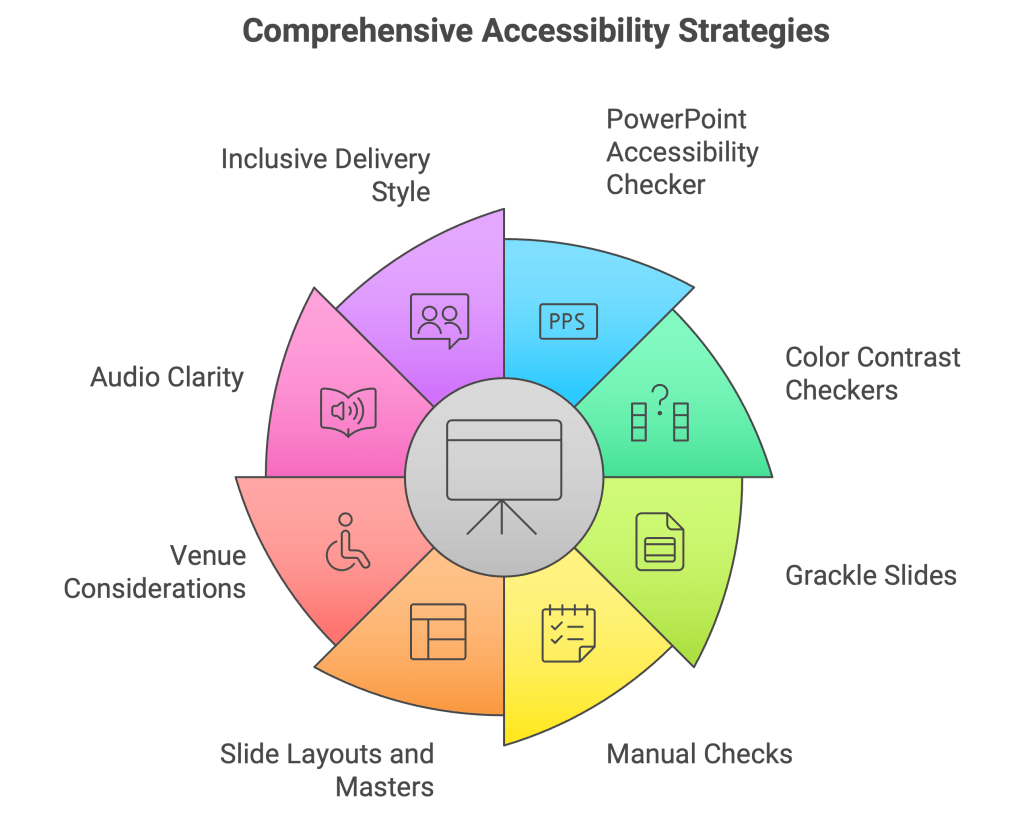
- PowerPoint’s Built-in Accessibility Checker: Located under the “Review” tab, this should be your initial go-to. It flags many common accessibility issues (e.g., missing alt text, insufficient color contrast, reading order problems) and often provides actionable suggestions. Make it a habit to run this regularly throughout your design process!
- Color Contrast Checkers: As previously mentioned, indispensable tools like the WebAIM Contrast Checker (online) or various browser extensions can help you meticulously verify that your text and background color combinations meet WCAG contrast ratio requirements.
- Grackle Slides (for Google Slides users): If your team primarily uses Google Slides, Grackle Slides is an excellent add-on for conducting thorough accessibility checks. (Source: Berkeley)
- Manual Checks are Non-Negotiable: Automated tools are invaluable, but they cannot catch every potential accessibility barrier (some estimates suggest they identify only 30-50% of issues). Always supplement automated checks with thorough manual reviews:
- Attempt to navigate your entire presentation using only the keyboard.
- Listen to your presentation using a screen reader (e.g., Narrator in Windows, VoiceOver on Mac).
- If possible, view your presentation in different lighting conditions and on various screen sizes to spot potential visibility issues.
- Leverage Slide Layouts and Masters Consistently: Using PowerPoint’s predefined slide layouts and the Slide Master feature is fundamental for maintaining structural integrity, a logical reading order, and consistent branding – all cornerstones of accessible presentation design.
- Consider Accessibility Beyond the Digital: Environment & Delivery:
- Venue Considerations: When planning in-person events, assess physical accessibility (ramps, accessible restrooms). Ensure optimal lighting on the speaker and any sign language interpreters. Minimize distracting backgrounds. (Source: W3C)
- Audio Clarity: Always use microphones, even in seemingly small rooms. Make it a practice to repeat audience questions into the microphone for the benefit of all attendees and any recording. (Source: W3C)
- Inclusive Delivery Style: Speak clearly and at a moderate, deliberate pace. Explain acronyms and jargon. Pause between topics to allow for information processing. And, critically, verbally describe all relevant visuals displayed on your slides. (Source: W3C)
6. Navigating the Hurdles: Common Pitfalls & Challenges in Presentation Accessibility
Achieving consistent presentation accessibility can present challenges. Forewarned is forearmed:
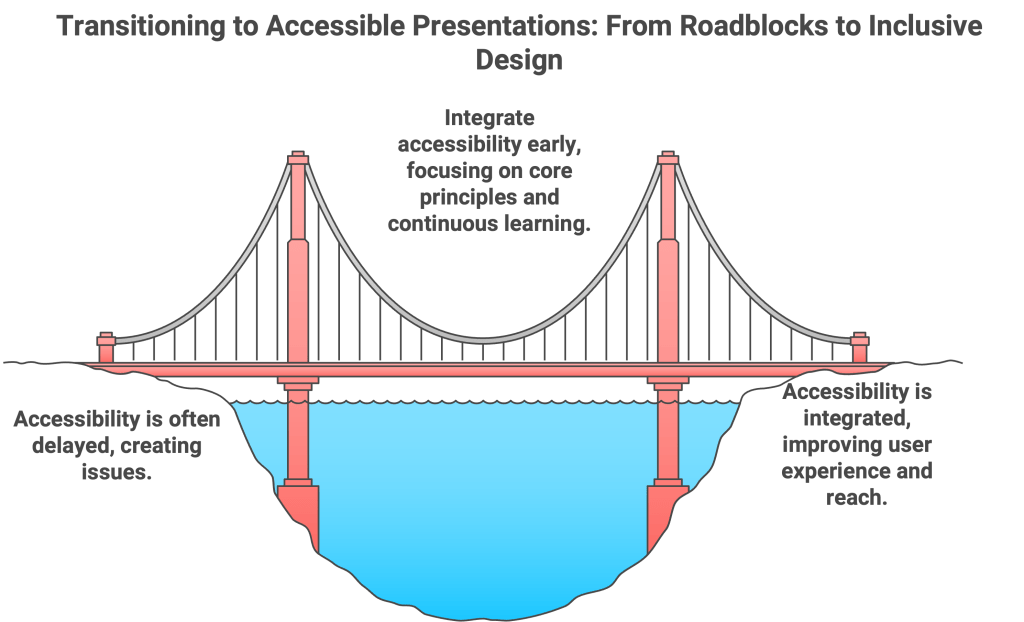
- Accessibility as an Afterthought: Often, accessibility considerations are deferred to the end of the design cycle, especially under pressing corporate deadlines. Proactive Solution: Integrate accessibility into your workflow from the very beginning. Treat it as an essential quality check, not an optional add-on.
- Complexity of Diverse Needs: Addressing the wide spectrum of disabilities (visual, auditory, motor, cognitive, learning) can appear daunting. Practical Approach: Focus on the core WCAG principles (POUR). They provide a robust foundation that addresses a majority of needs.
- Lack of Awareness and Training: Many content creators are simply unaware of key accessibility principles or lack the training to implement them effectively. Empowerment Strategy: Invest in learning. Seek out reliable guides (like this one!), explore W3C resources, and practice applying these techniques.
- Over-Reliance on Automated Tools: Mistakenly believing that a pass from an automated checker guarantees full accessibility can lead to a false sense of security. Balanced Strategy: Always combine automated checks with meticulous manual reviews and user testing if possible.
- “Compliance” vs. True Usability: Simply meeting WCAG guidelines is the baseline. True accessibility aims to create a genuinely positive and usable experience for individuals with disabilities. User-Centric Mindset: Always design from the perspective of diverse users.
- Outdated Systems or Restrictive Internal Standards: Legacy templates or outdated internal design systems might lack robust support for modern accessibility features. Advocacy Role: Champion updates to internal resources and prioritize accessibility in the development of new templates and design standards.
- Siloing Accessibility: Often, accessibility is incorrectly perceived as solely a “developer” or “technical” issue. However, presentation designers are pivotal content creators. Collaborative Approach: Equip everyone involved in presentation creation with the necessary accessibility knowledge and tools.
- Perception as a Burden or Prohibitive Expense: Accessibility efforts can sometimes be viewed as an additional cost or undue effort. Strategic Framing: Reframe accessibility as a strategic investment in expanding audience reach, enhancing overall quality, upholding brand values, and mitigating legal risks. The potential cost of inaccessibility (legal repercussions, lost engagement, damaged reputation) is often far greater.
- Maintenance Neglect: Accessibility is not a one-time fix. When presentations are updated or repurposed, their accessibility features must be re-evaluated and maintained. Sustainable Process: Integrate accessibility checks into your standard content update and review workflows.
7. Conclusion: Mastering Accessibility for Presentation Success – A Win-Win for All
Creating truly accessible PowerPoint presentations is more than a technical exercise; it’s a profound commitment to inclusive and effective communication. By deeply understanding and diligently applying WCAG principles, leveraging PowerPoint’s accessibility features, and adopting best practices for both slide design and live delivery, you ensure your critical messages aren’t just broadcast—they’re received, understood, and have the opportunity to resonate powerfully with every single person in your audience.
While navigating challenges in fast-paced environments is a reality, the ethical, legal, and business rewards of prioritizing presentation accessibility are undeniable and far-reaching. Transitioning from merely presenting information to actively ensuring everyone can engage with it marks a significant step towards communication excellence. When you proactively design for accessibility from the outset, you’re not just making your presentations compliant; you’re making them fundamentally better, more robust, and ultimately, more successful for everyone involved.
Related Post